Release Notes for Version 2.1
Our discussion of 2.1 will be a review of changes/additions made to the system since release 2.0(f). Those prior changes are listed in the normal release notes that are online. The items we generally won't highlight here are things like typos, minor bug fixes, minor style changes, etc. Those will be left as an exercise
for the reader to discover.
When you navigate to another tool or to a tool via an action menu, a back arrow icon appears at the top of the page to the right of the Bullhorn icon as shown in this image:
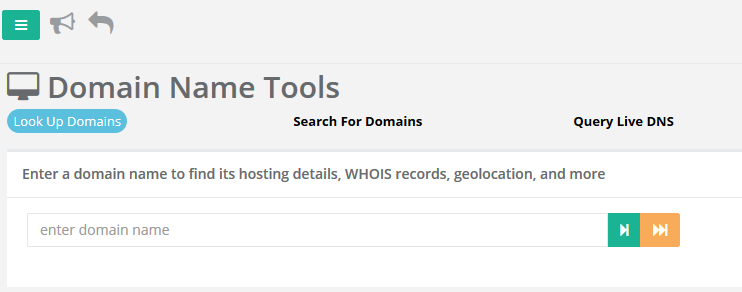
Clicking the icon is equivalent to using the browser's back button within CTB (in that it takes you back to the last "page" you were on.
CTB is designed as a single page application (SPA). There are methods for trapping the standard browser back button, but they all have serious (and in our opinion, unacceptable trade-offs vs. usability).
However, the primary reason we added this feature
was to quickly return to the page where you clicked on an action menu's option. That's why we didn't use a bread-crumb type of navigation aid (ie: "dashboard > lookup up") type of approach — ladderlike, you move in only two directions. CTB workflow is not serialized like that. You can
wander all over the place which is one of CTB's great workflow advantages.
We added 12 additional videos which cover almost all the tools. Some of the new tools and features are not yet documented in the videos. In addition there might be minor differences because we've added new features since the videos were
produced or made other changes. In those cases, the videos should be good enough to learn how to use the tools. The screens just might not exactly match up.
Your file libary could get unruly so we now paginate the file display as shown in the following screen shot:
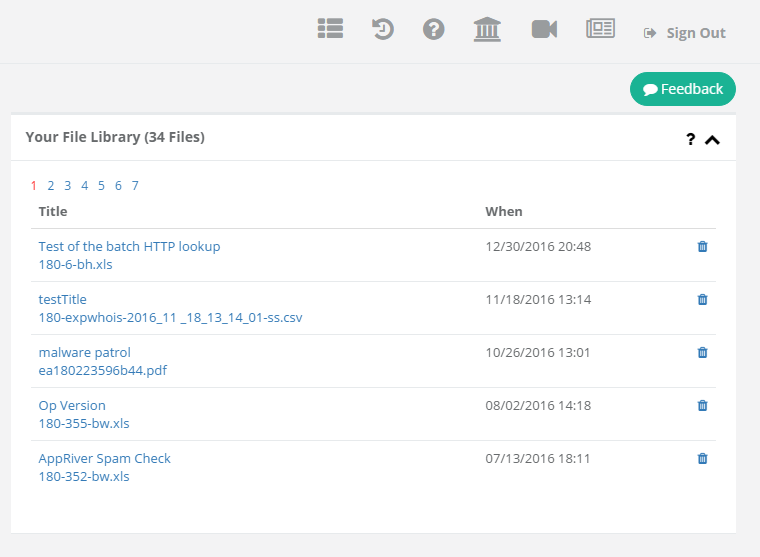
Clicking on one of the numbers will display that page of results. Note that each page has, at most, 5 files listed. This is one of the few places (if not the only place) where we ignore your page size user preference.
As with almost all our information displays, the information is displayed in a sorted manner so that the most recent entries are shown first.
We've added some real time display of data to the base information section of the Lookup Domain tool. The following screen shot demonstrates what this looks like:
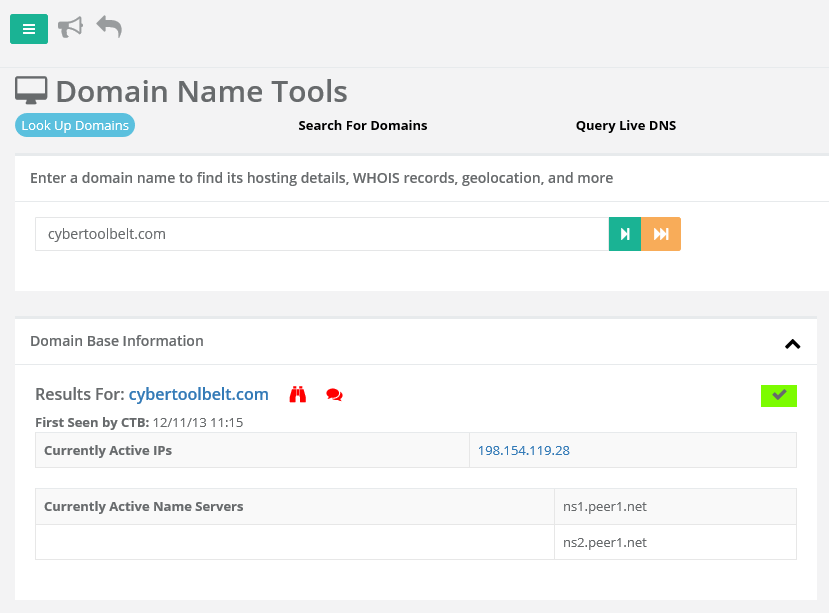
Under the First seen by CTB line is box of one or more currently active IP addresses associated with the domain. If this section isn't displayed then there are no currently active IP addresses associated.
Under the active IPs section are the currently active name servers associated with the domain.
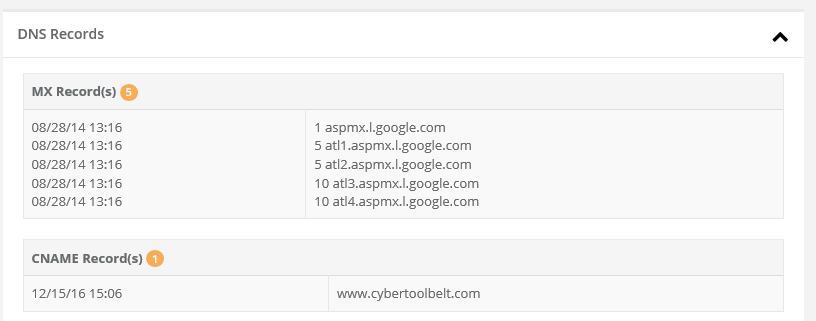
We are now able to detect CNAME DNS records in some circumstances and list them in the domain lookup information DNS data section as shown in the
following screen shot:
In many cases where an IP address is displayed in CTB and there are one or more issues
concerning the IP address, a red info triangle will be displayed as shown in the following screen shot:
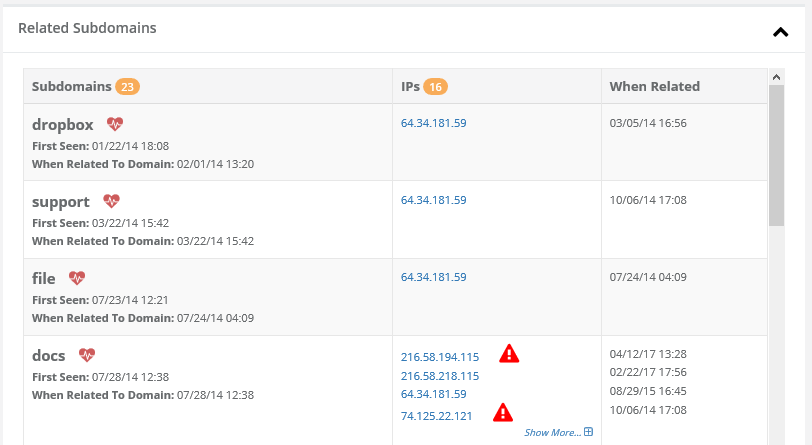
Hovering over the triangle will display the number of
issues associated with the IP address. Clicking the triangle icon will display the issues in a pop up as shown in this screen shot:
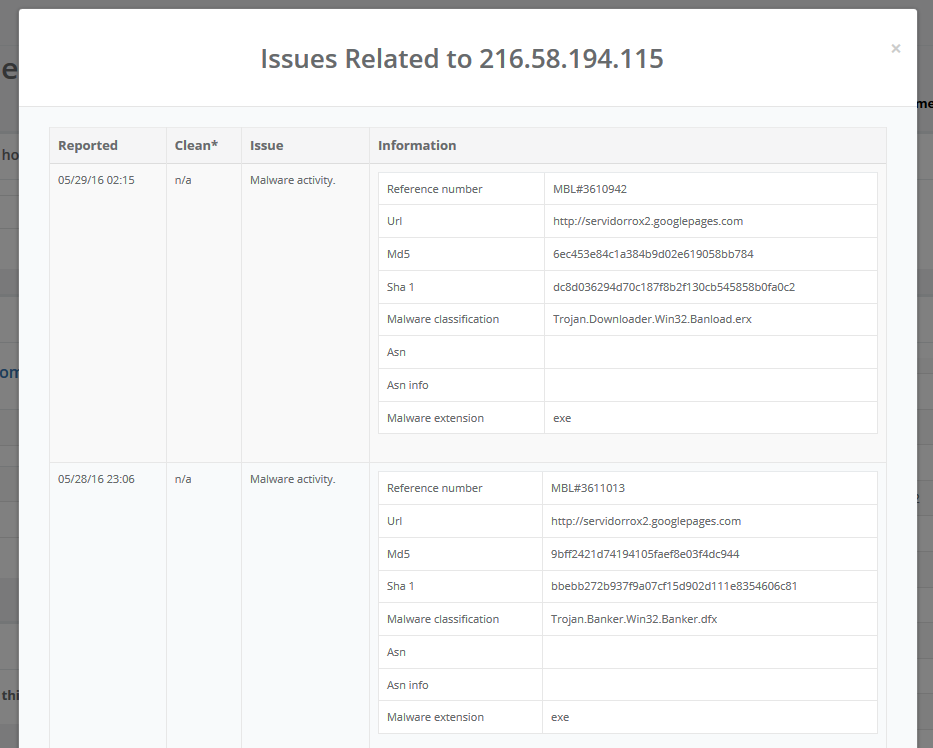
We are only displaying the first 2 of the issues in this image. There are actually 24 associated with the IP address.
In addition to the issues triangle alert you may also see a circle alert as in the following screen shot:
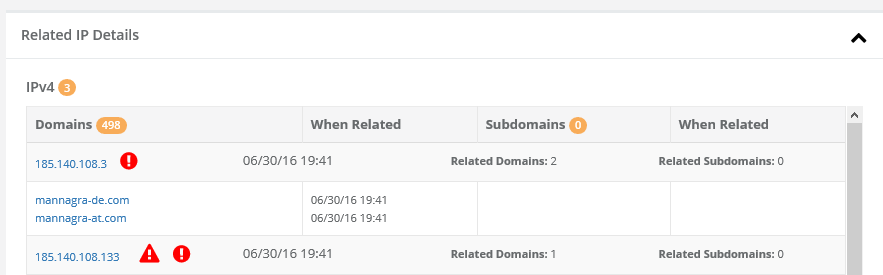
Clicking on the alert will display a pop-up dialog box that details information about the "badness" of the ASN that the IP address belongs to. The circle alert will only appear for ASNs who rank in the top 100 ASNs containing the most abusive IPs.
See information presented later on about the Lookup IP tool changes for details of this information.
We've redesigned the background tasks/reports status page. This was done primarily because people were looking for their reports, etc. on the background tasks tab which was displayed by default. We have swapped the two buttons and changed the
default tab that is displayed to the reports page as shown here:
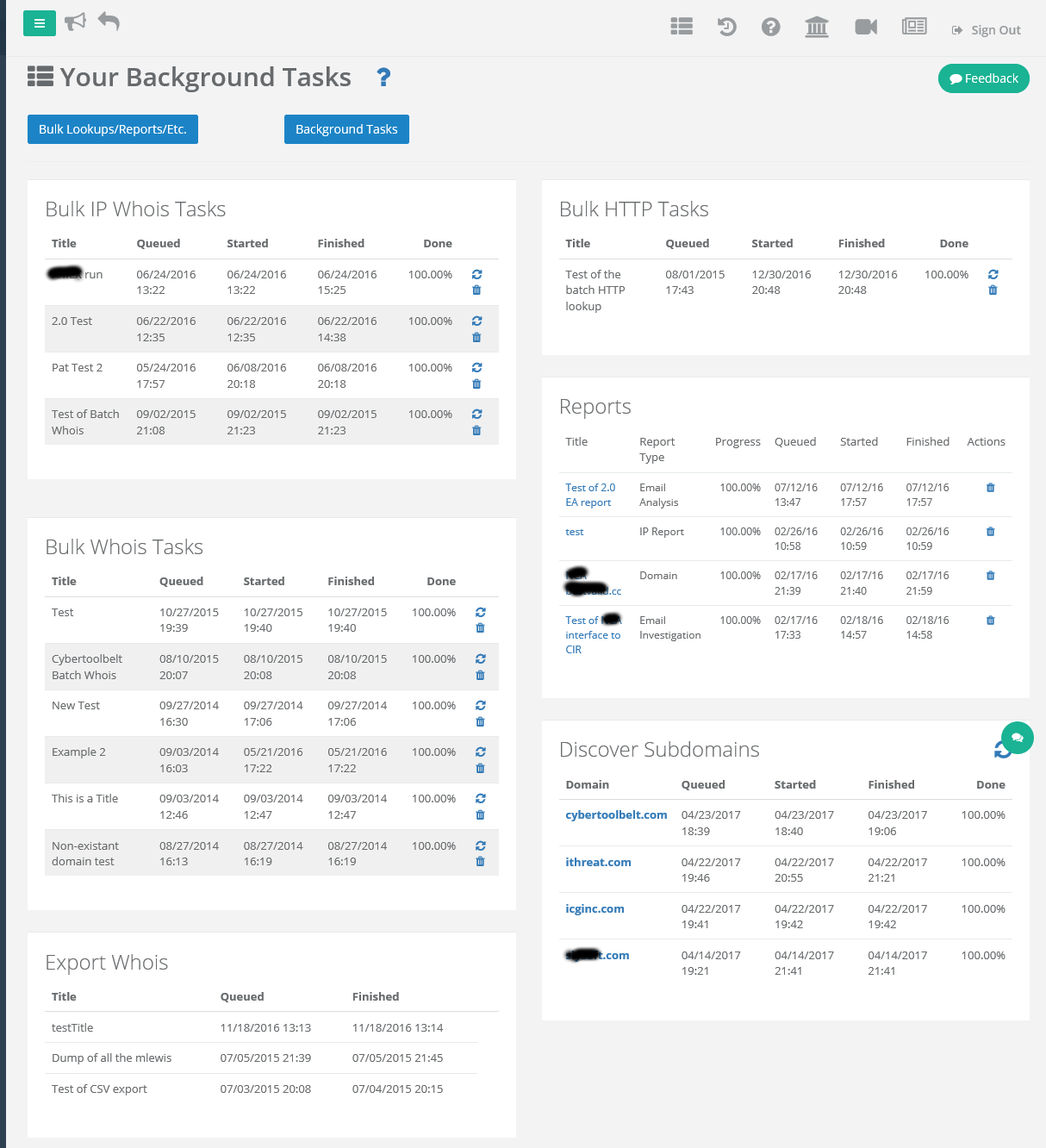
The difference between the two tabs is that the background tasks page displays the current status of any tasks you have submitted using either the green or orange go buttons. The reports/lookups tab displays the status of bulk lookups, reports,
exports, etc. Note that some of these may have been submitted to the backend via an orange button in a tool — such as when only an orange button exists for a tool.
The Discover Subdomains status box was added to this page. From 1.x through 2.0 we did not report the status of these tasks. They don't produce any kind of reports or return anything to the front end. They are basically "fire and forget"
tools that perform a data-gathering task. Well, enough users were wondering how they could tell the progress of these requests that we now display the task queue for discovery of subdomains.
Speaking of discovery of subdomains as we just were, the backend process that tackles this task has been completely rewritten Major changes:
It now examines more than 100 times as many possible subdomains candidates.
We have developed two additional techniques to find subdomains (with another one that is just missed the 2.1 release. We'll be adding it into 2.2)
The backend process is much more robust. The old one could occasionally crash and since it was a "serial" processor, it could jam up the queue and no one's
requests would get processed. Now, a crash would only affect that single task. We have eliminated all the reasons the old processor could crash and expect far fewer (essentially none) with the new subsystem.
When the task is complete you get a badge number update at the top of the screen, the task complete sound is played and an email is sent to you.
With all the additional techniques and additional checks, it finishes, on average, somewhat faster than the pre-2.1 version ‐ currently around 26 minutes.
It's a minor thing, but we've stopped referring on pages to what we used to call "batch" tasks and now refer to them as "bulk" tasks as in "Bulk IP Whois". "Batch" is old mainframe jargon. It's similar to calling the TV remote control a "clicker".
We don't want to date ourselves too much.
We've add 2 new options to the Domain sction menu as shown here:
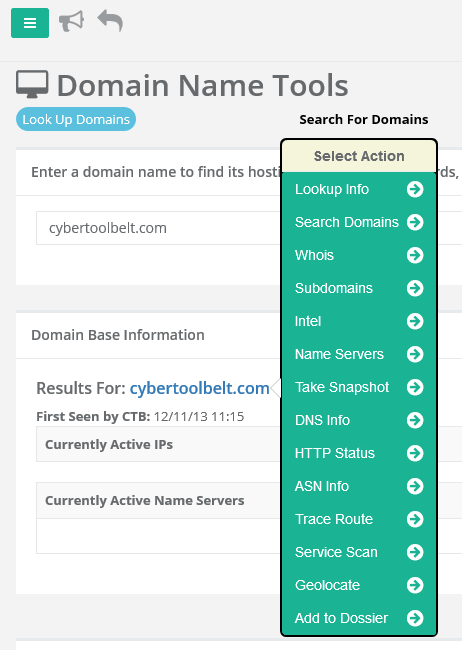
The new items are:
Search domains. When clicked will search for all domains containing the domain name minus the TLD, in this case: cybertoolbelt.
Take Snapshot. When clicked will take a snapshot of the home page of the domain.
These options are really just to improve workflow in many cases. However, sometime it makes more sense to go directly to the tool so that you can set other options when performing the operation.
A number of changes have been made to the Lookup IP tool. Primarily the archiving/display of rDNS data and the display of the abuse information about the ASN the IP address belongs to. Here's an example screen shot that demonstrates the abuse data:
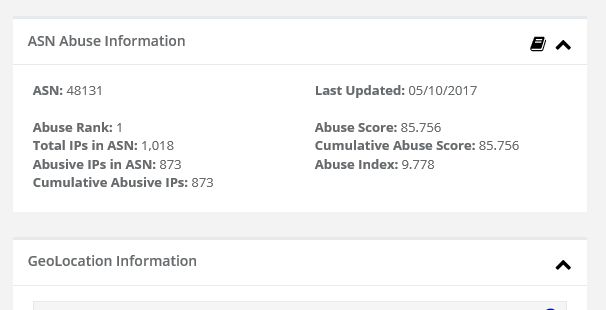
We are showing you the #1 ranked abusive ASN in our system as an example (over 85% of the IPs in this ASN are associated with abusive activity.) We calculate abuse based on block/black lists from reputable sources as well as our own data gathering. We have a number of sensors on the internet monitoring abuse.
Some of the information display is obvious as to its meaning. However, the rest may not be. To that end there is a "book" icon that when clicked will explain in more detail what everything means. This is the information in that pop up:
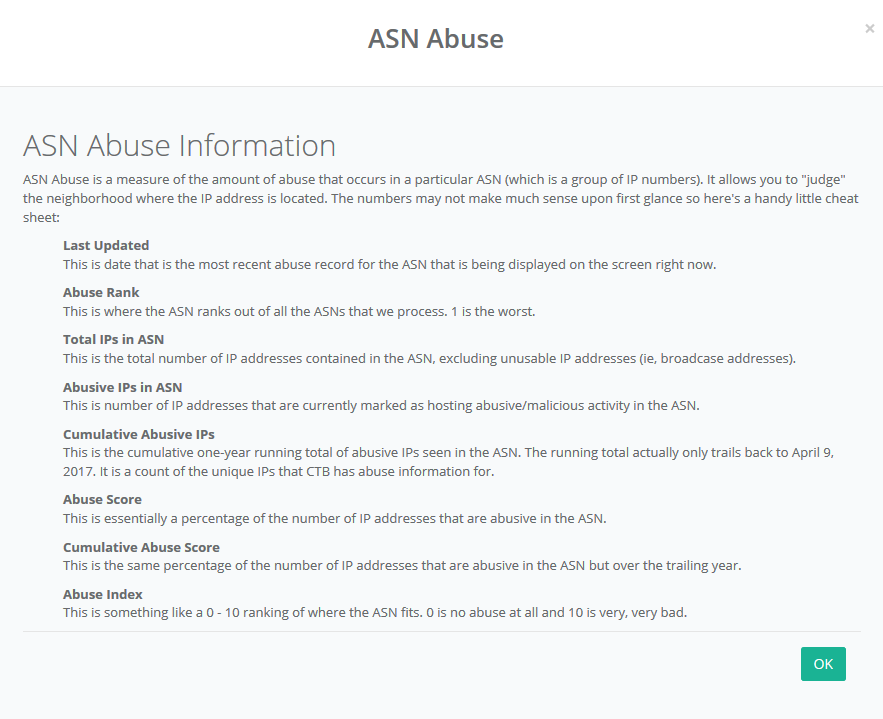
The point of ASN abuse information is to alert you to the type of neighborhood the IP you are examining lives in. Note that we currently only have abuse data for this display back to the beginning of April, 2017. We are backfilling the data slowly so as not to
impact system performance (it currently takes about 8 hours to produce a single day's abuse statistics). We will be optimizing the process but this is a ton of data that is going to take a while to process.
The change to the rDNS information display recognizes two things:
That an IP may have more than one current rDNS record.
That an IP may change rDNS over time. Previously CTB was not saving historical rDNS data. It now does.
This screen shot displays an example of #1 for ip 81.145.32.82:
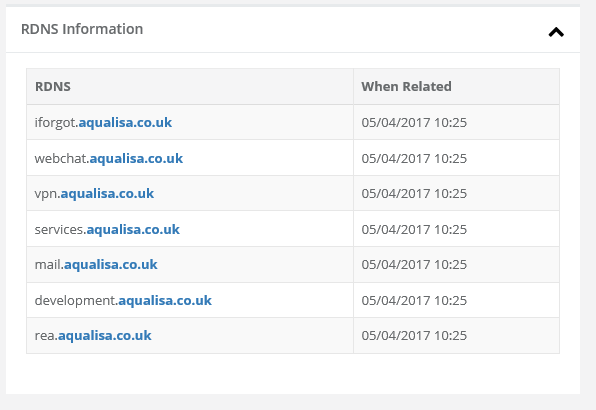
The rDNS records are displayed in reverse date order (newest first). The IP Lookup tool always performs a RDNS internet lookup when it is run. Therefore, any record displayed that is not within a few minutes of real time (UTC) is probably a historic
record and not current. We have been only storing rDNS data for the last month or so, so there isn't a ton of historical data in our database yet.
The Site Mapper tool now uses many proxy servers to spider an URL. This has two effects: 1) Spidering is 10-20% slower; 2) It should be harder to detect the URL is being mapped and the proxy infrastructure is not readily identifible as CTB infrastructure
as we use third-party proxies.
Random Changes:
Web page snapshot operations now filter out additional HTML 5 tags that showed up in the non-html text. There are probably additional tags that we will add to the filter list as we dig deeper.
Issue types that CTB reports on are now listed in their own tab along with Registries and Glossary on the resources page. This are the types of issues that can be returned as either domain or IP address issues.
Bug fixes:
- If you did a Discover IP of Subdomain lookup on a subdomain we didn't know about, the tool would report the subdomain didn't exist.
- The examine shortened URL tool did not display the destination URL.
- The HTTP status in the domain action menu would sometimes not work.
Your remaining search units are now displayed in the header of each tool that consumes them as well as on your profile page.
A description field has been added to the IP Search Whois tool.
You can now specify whether or not the File Library widget on the dashboard will be in the open or collapsed position when the dashboard page is loaded. This setting is set in the Preferences section of the Your Profile page.
The were many changes to the General Tools. These were the White Pages, Called ID and the Analyse Email tools.
The easist one to explain is the Analyze Email tool. The only change with that is that it was moved to the new Report tools page. Everything else about it is the same.
The Caller ID tool is used in the same manner — but different, and in some cases, additional information is returned.
The biggest change is that the Whitepages tool has been removed. Actually, removed is the wrong word. Replaced by the Identity Check tool is more correct. We've also added a Phone Reputation tool and a Reverse Address tool.
The Whitepages graph has been removed because the data provider that we use for this informationc changed their API significantly and no longer provides the information needed to produce the graph. On the plus side, they have given us access to additional
data sources so we could create two new tools: Phone Reputation and Reverse Address.
The phone reputation tool returns informtion about a telephone number's reputation as shown in the following screen shot:
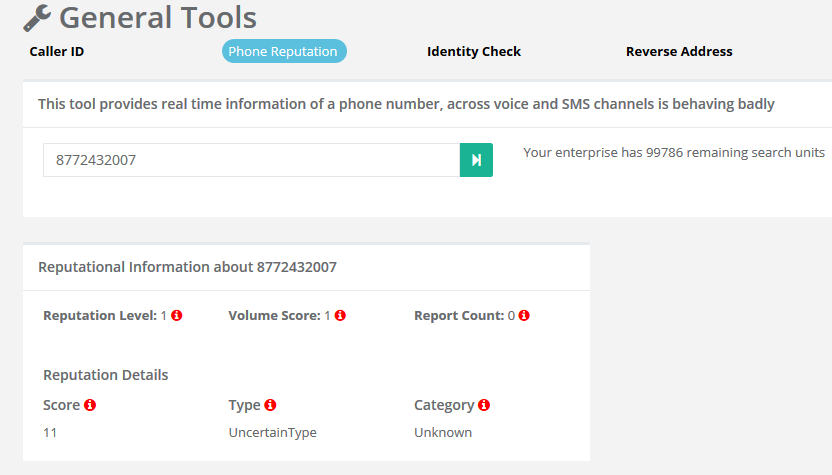
You can click on the little i-in-a-circle icons to get information about what a particular field means.
The Reverse Address tool provides information about things related to an address.
A new set of Report tools was added. Actually, three new reports were added and the Email Analyze tool was moved to this tool section. This is the screen that will be presented
when you click on the Reports navigation link on the left side of the screen:
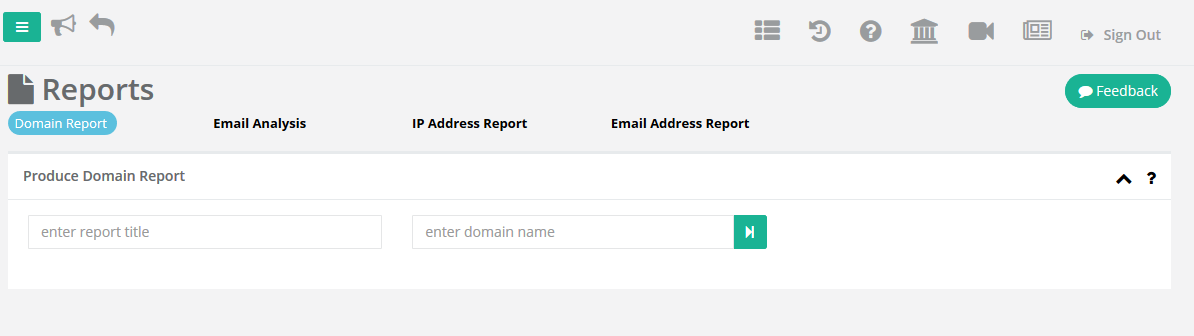
The reports that can be created from this tool are:
Domain Report
This report produces lots of information about the entered domain.
Email Analyse
This is a report left over from previous versions of CTB. It provides an analysis of an email.
IP Address Report
This provides an in-depth analysis of an IPv4 email address.
Email Address Report
This report is for email addresses analysis.
All these reports consume 30 of your daily/monthly query query counts. That makes them a bargin because they use much more than that to perform their analysis.